


Choose the date range of a widget
Set which days a widget covers - a number of periods counted back from today, the days between two dates, or the days from or up to a date.
Before you start
You need:
- Access to the Dashboard (Dashboard in the side menu)
- A widget on your Dashboard
New to the app? Start with Sign in to the web app.
When to use it
When a widget should show a different stretch of time, for example the last few weeks instead of the last few months.
Step by step
-
Step 1: Click the date chip - a relative range counts periods back from today
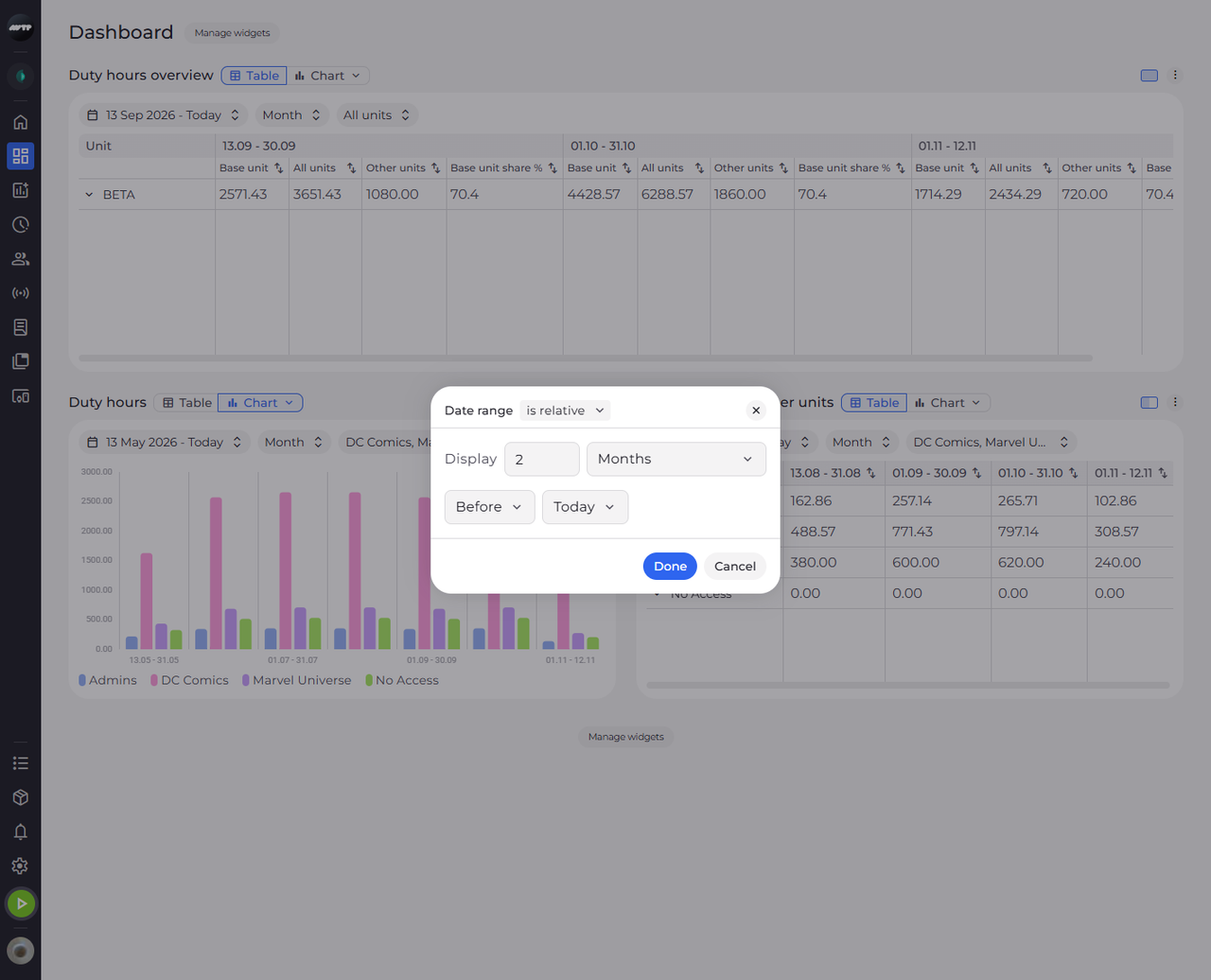
Click the date chip of the widget - the first chip, with the calendar icon. The Date range dialog opens on the current range of the widget: is relative, a number of periods next to Display and their unit, then Before and Today.
Tip: Before counts back from the chosen day and After forward from it. With Today the range moves on every day; choose Date to count from a fixed day you pick in the calendar.
Tip: The date chip shows the days the widget really covers. It ends in Today while the range runs up to today, and shows month names only when the range starts and ends with whole months.
-
Step 2: Type how many periods and choose their unit - here the last 12 weeks
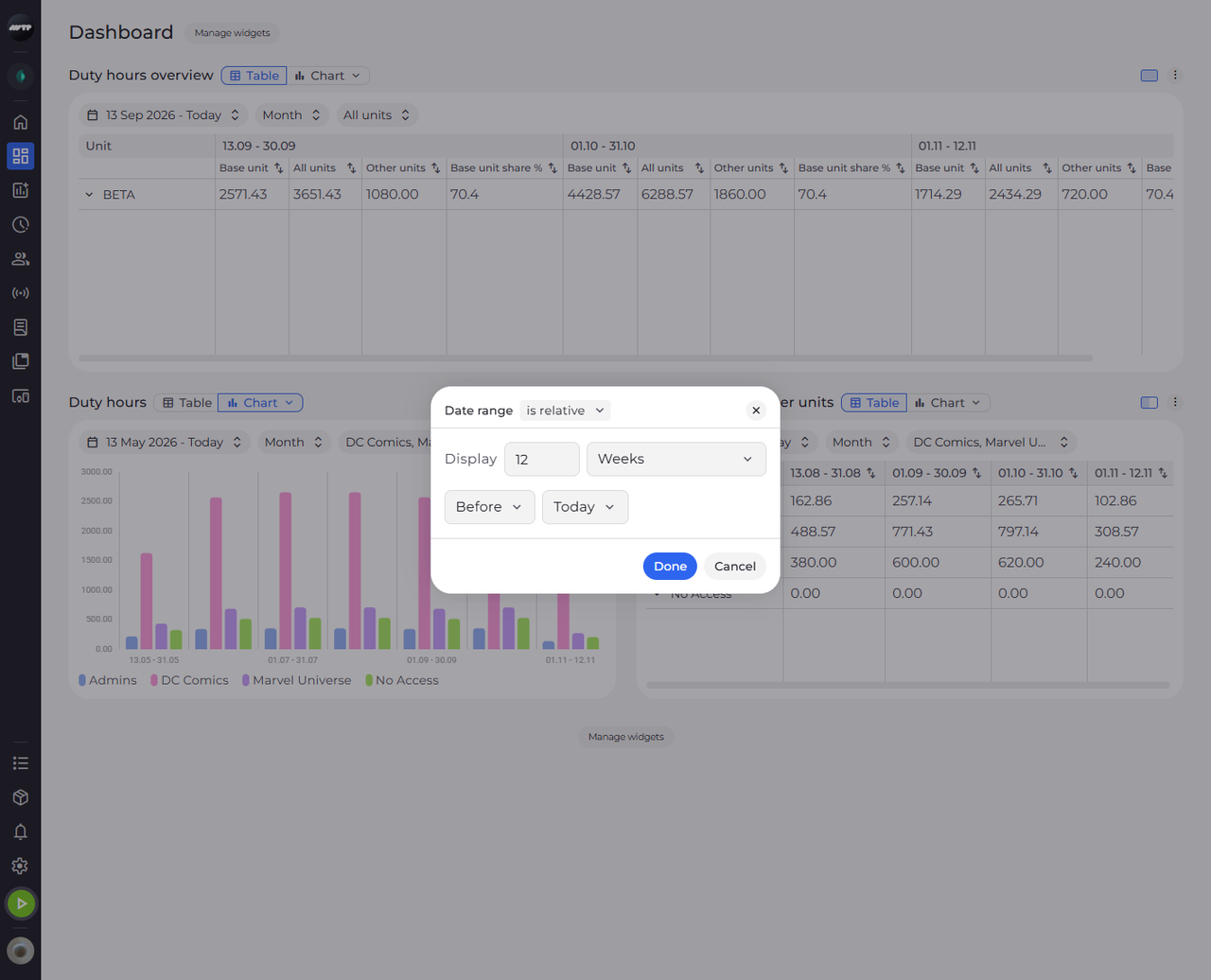
Click the number next to Display, delete it and type how many periods you want. Open the list next to it and choose their unit, for example Weeks. Click Done to apply the range to the widget.
Tip: Done stays unavailable until the number is a whole number of 1 or more - until then the dialog says "Enter a whole number of 1 or more."
-
Step 3: A range can also run between two dates, or from or up to a date
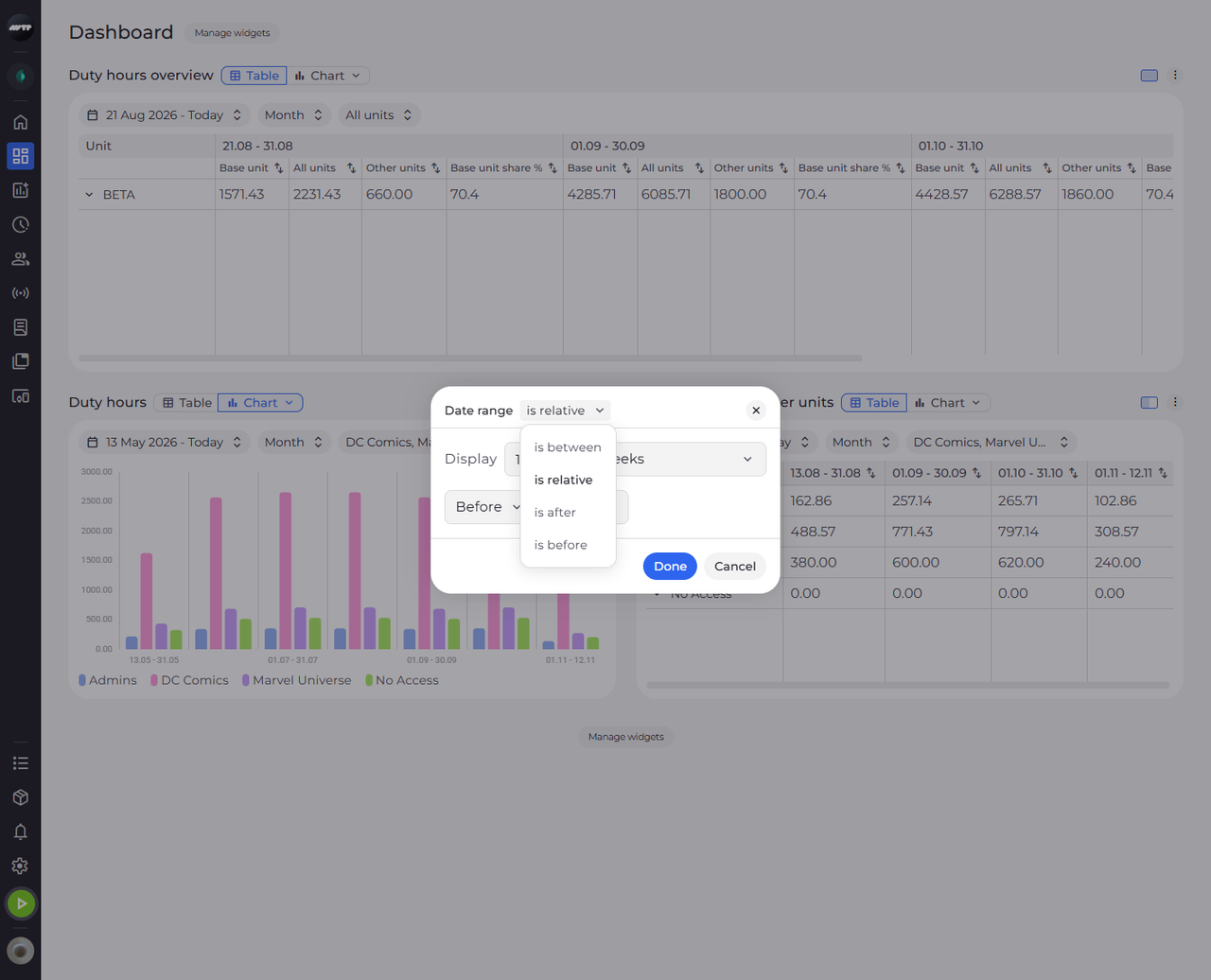
The date chip now shows the new first day. Click it again, then click is relative next to Date range: the list offers is between, is relative, is after and is before. Click Cancel to close the dialog without changes.
Tip: With is between, click the first day and then the last day in the calendar. A day before the first one becomes the new first day.
Tip: With is after, the date can't be later than today - the calendar does not let you pick a later day.
What happens next
The widget covers the number of periods you chose, counted back from today. The range is saved with the widget, so it is still there the next time you open the Dashboard.
Questions
Why does a widget say "Too many periods. Choose a shorter date range or a larger resolution."?
The range holds more periods than a widget can show. Choose a shorter range, or a longer period in the resolution chip - for example Month instead of Day.